Grain Archive Lab · Film emulation software for Mac
Film grain that comes with the film
Every film look of the app brings the grain of its film: fine for a slow slide film, coarse for a fast black and white. Then you set how much, how big, how colored, and the film format it stands for.
Free trial: no account needed, TRIAL watermark
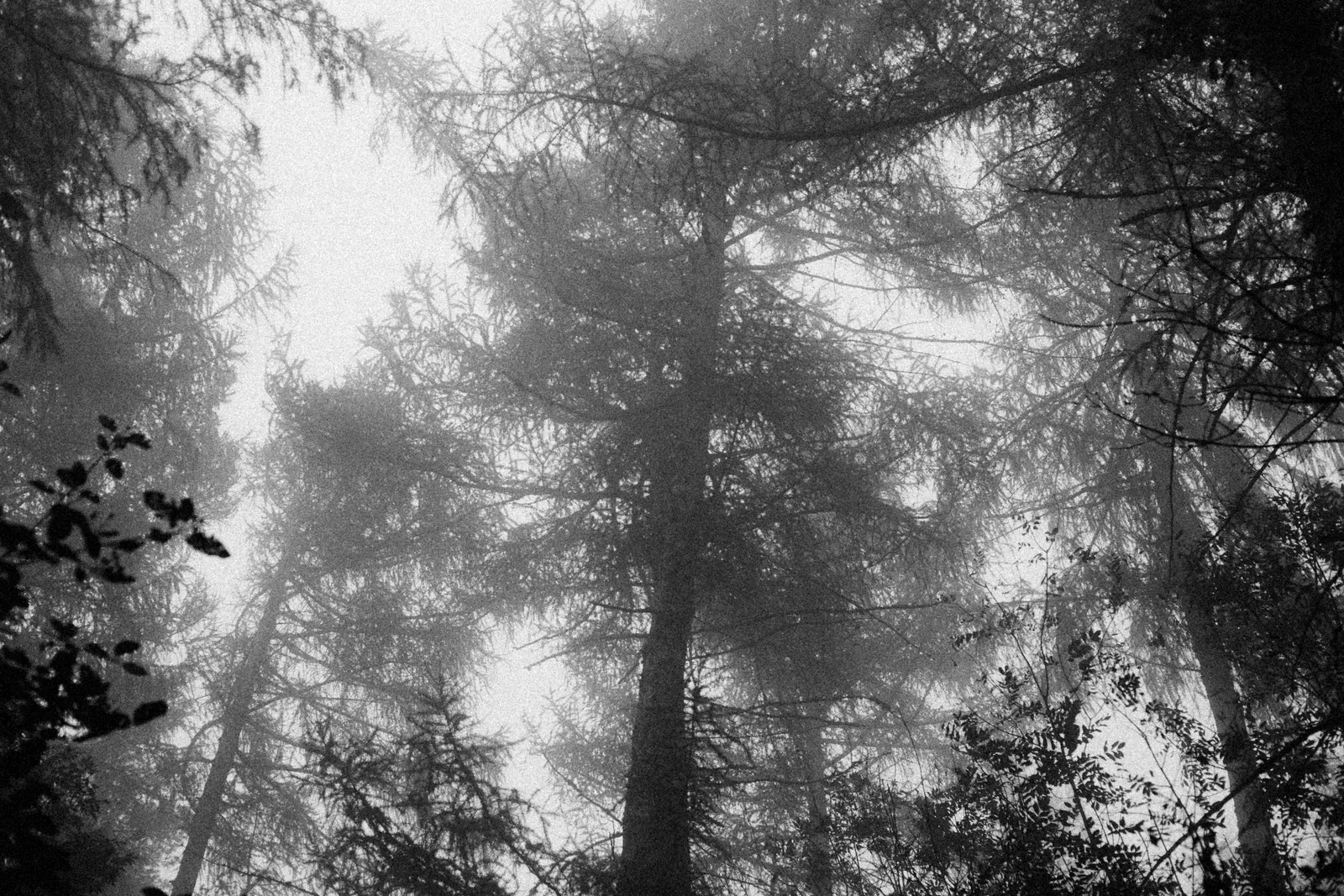
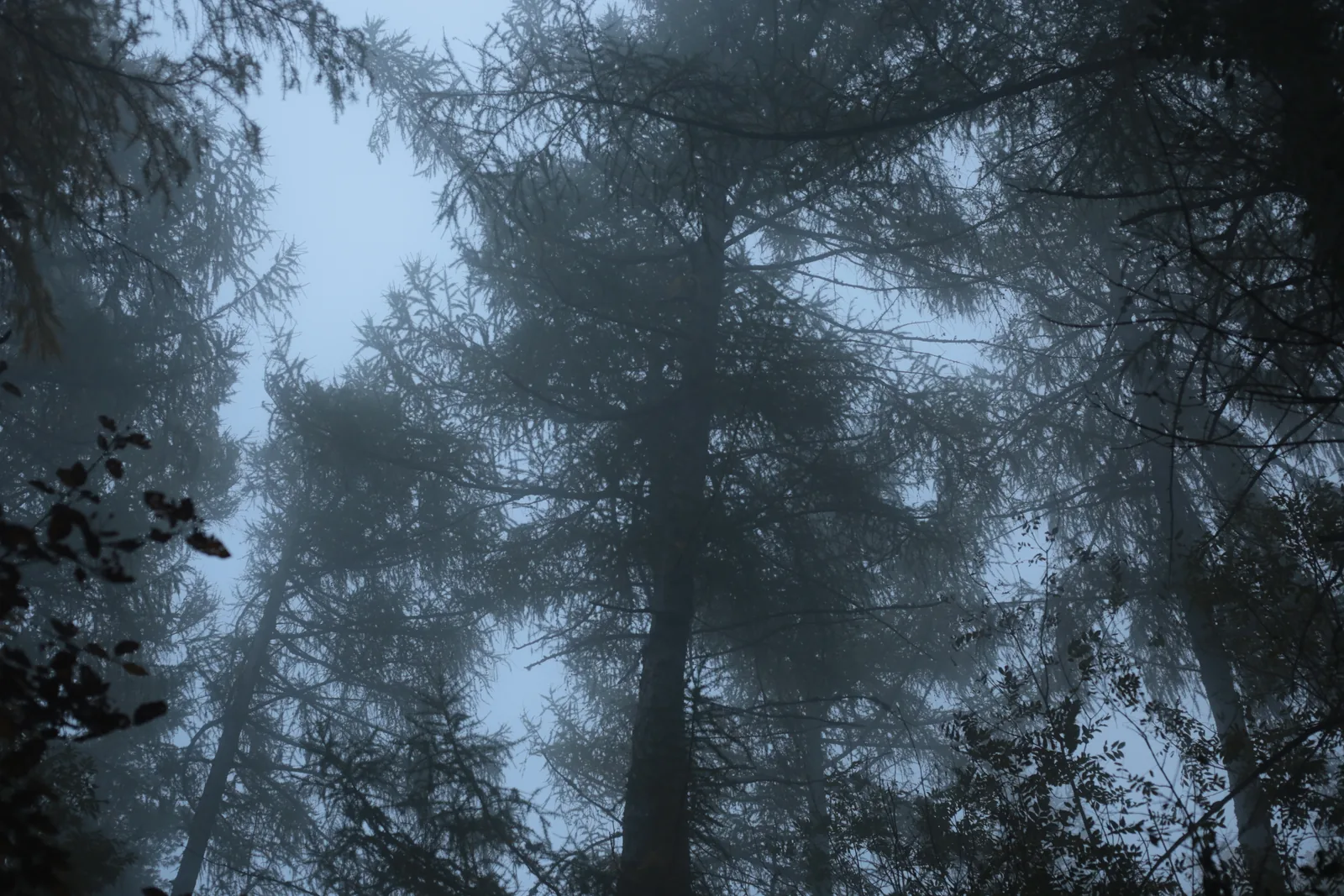
Not one texture for every photo
Grain is the visible structure of a film’s image, and each film has its own. A look based on a slow film starts with fine grain; a look based on a fast film starts with coarse grain. The starting point comes from what the film’s datasheet says about its grain, so changing the look changes the grain too.
The grain is part of the development, not a layer on top of it: push the film and it grows, pull it and it softens.
What you can set
In the Grain section of the inspector, in Advanced:
- Amount
- From none to twice the grain of the film; 100 is the film as it comes.
- Size
- Finer or coarser grain.
- Color
- How much color the grain carries: the grain of a color film is made of dyes, not only of light and dark.
- Format
- 35 mm, 120 or 4×5. A 35 mm frame is enlarged more than a 4×5 sheet for the same print, so its grain shows more.
- Push / Pull
- In Exposure: develops the film as if it were shot at a higher or lower speed, with more contrast and grain when pushed, softer when pulled. The exposure index shows the speed it stands for.
Easy or Advanced
In Easy, the inspector shows three versions of the look on your photo, Subtle, Standard and Strong: click one. Advanced shows every setting, starting from the version you chose. Strong has more grain than the film, Subtle less.
How to do it in Grain Archive Lab
- Open a folder of photos: New Session from Folder (⇧⌘O).
- In Develop, click a film look in the browser on the left: its grain comes with it.
- In the inspector, choose Subtle, Standard or Strong, or switch to Advanced and set Grain, or push the film.
- Export from Output: the grain is in the file.
Questions
Is the grain the same on every look?
No. Each look starts from the grain of its own film, and you can change it photo by photo.
Does it work in black and white?
Yes. The black and white looks have their grain like the color ones; their grain carries no color.
Can I make the grain stronger than the film’s?
Yes: Amount goes up to twice the grain of the film, and pushing the film adds grain as it does in the darkroom.
Does it change my original file?
No. The app never writes to your photos: exporting makes a new file.
In the Film Library
The films behind the looks: their history, datasheets and sources.
What else it does
-
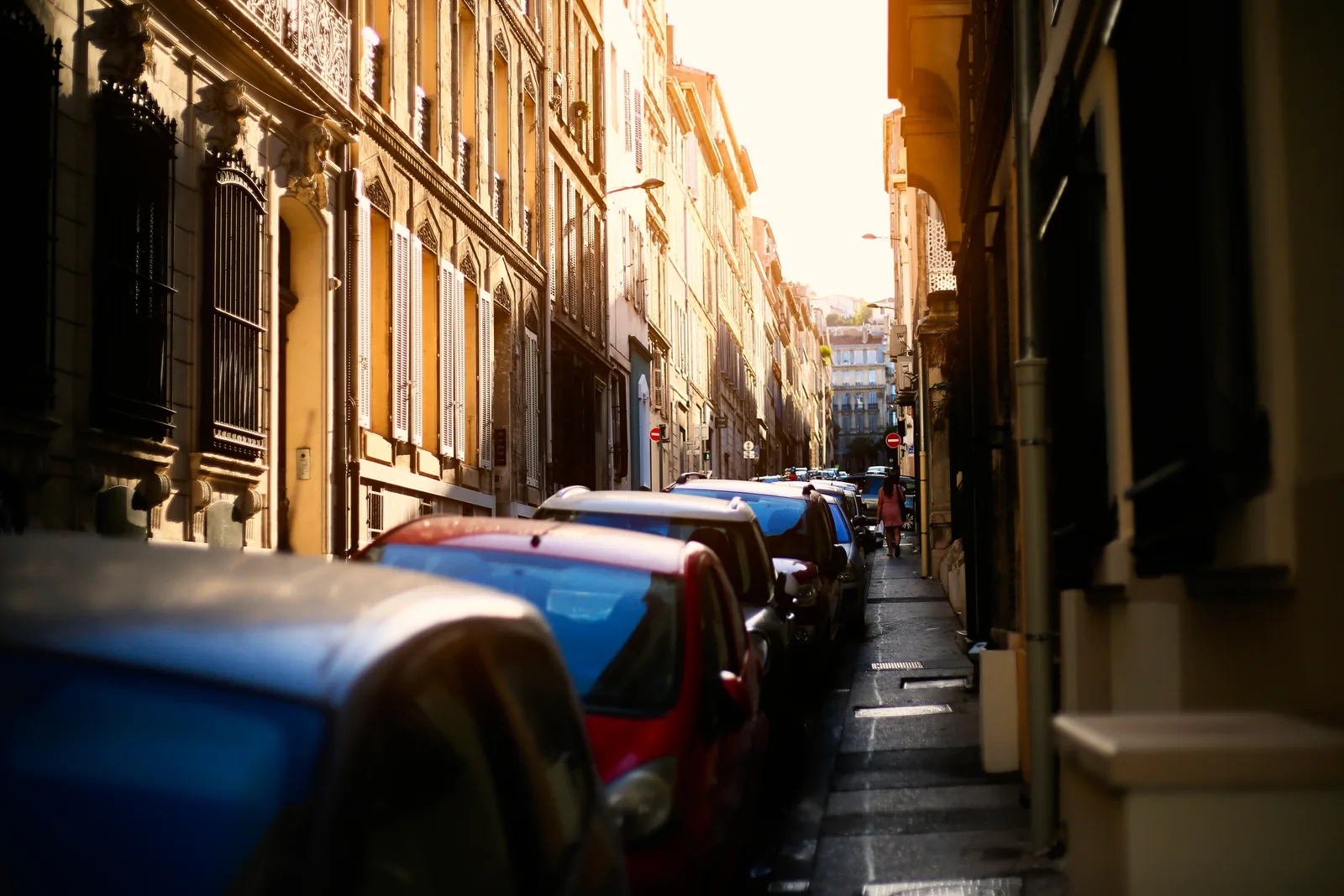 HalationThe red glow of films without an anti-halation layer, around your brightest lights.
-
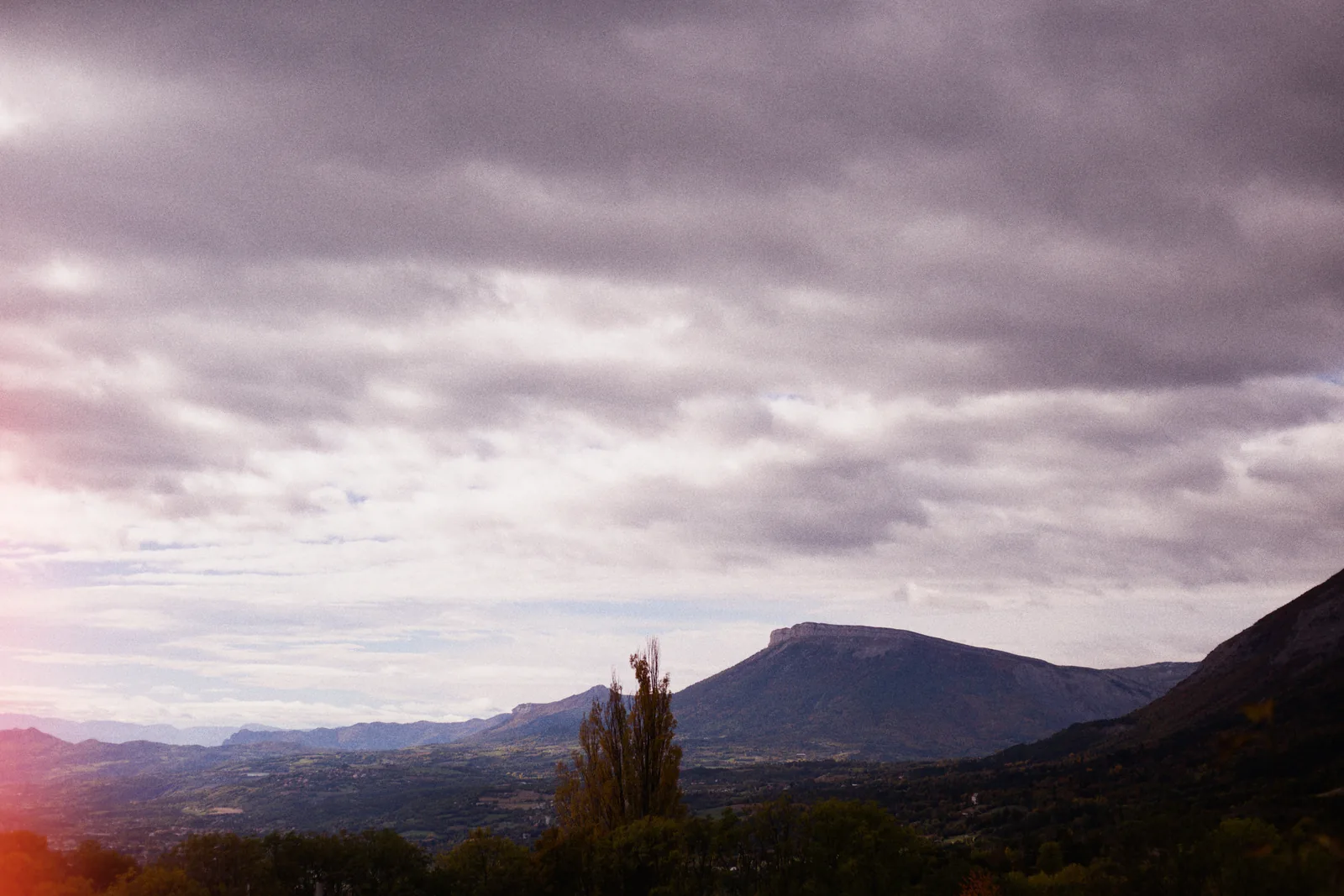 Light leaksStreaks, spots and edge glows, as many as you want, dragged where you want them.
-
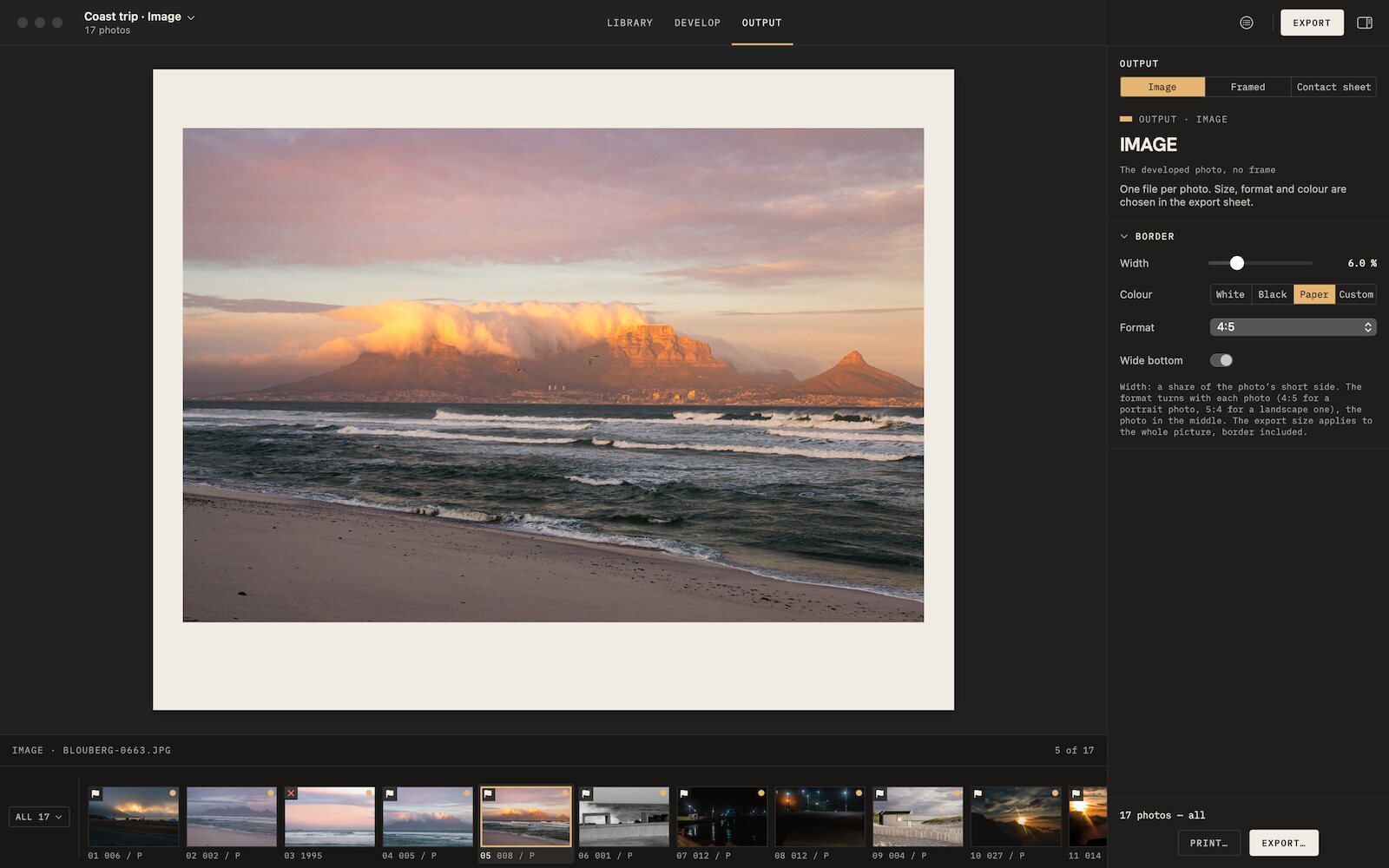 Film borders and framesAnalog borders, film frames, slide mounts and instant prints, photo by photo.
-
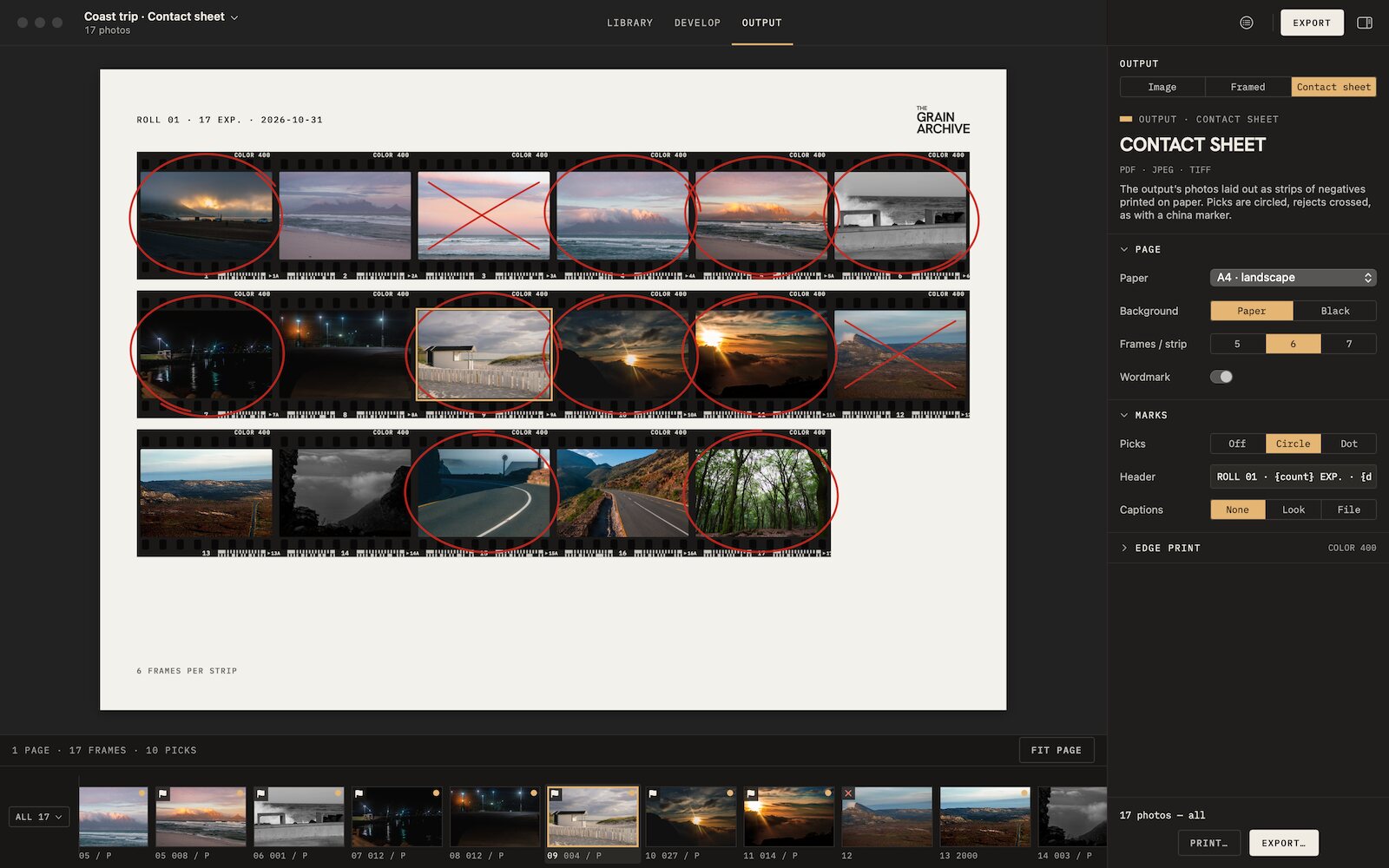 Contact sheetsThe whole session on paper, picks circled, rejects crossed out, to print or export.
-
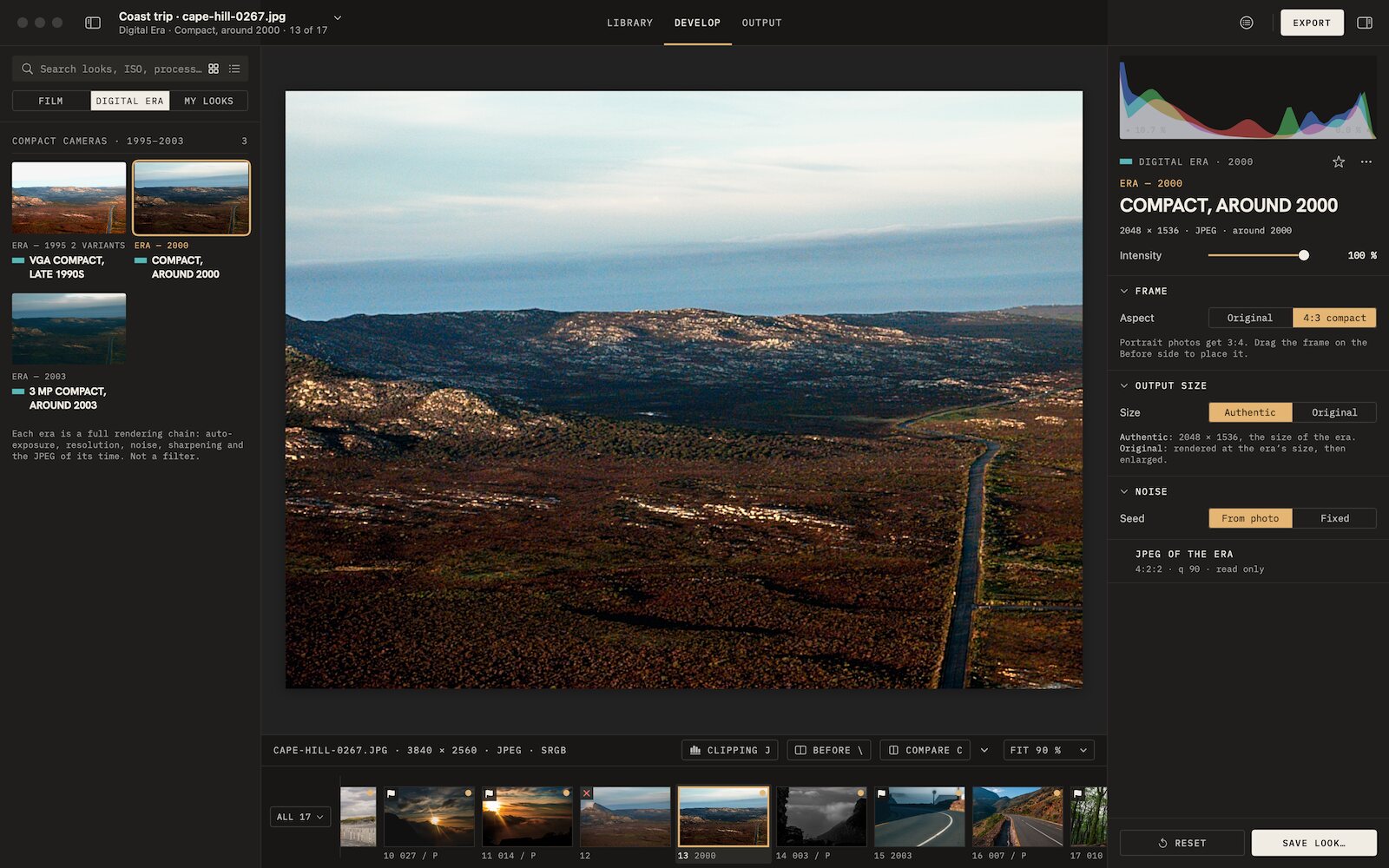 Digicam look3 eras of compact digital cameras, from VGA to 3 MP, their whole chain.

Film emulation software for Mac
Grain Archive Lab
95 film looks and the Digital Era, developed on your Mac: grain and halation built in, film frames and contact sheets.
Free trial: no account needed, TRIAL watermark · One-time · current major version and all its updates · Macs with Apple silicon, macOS 15 Sequoia or later